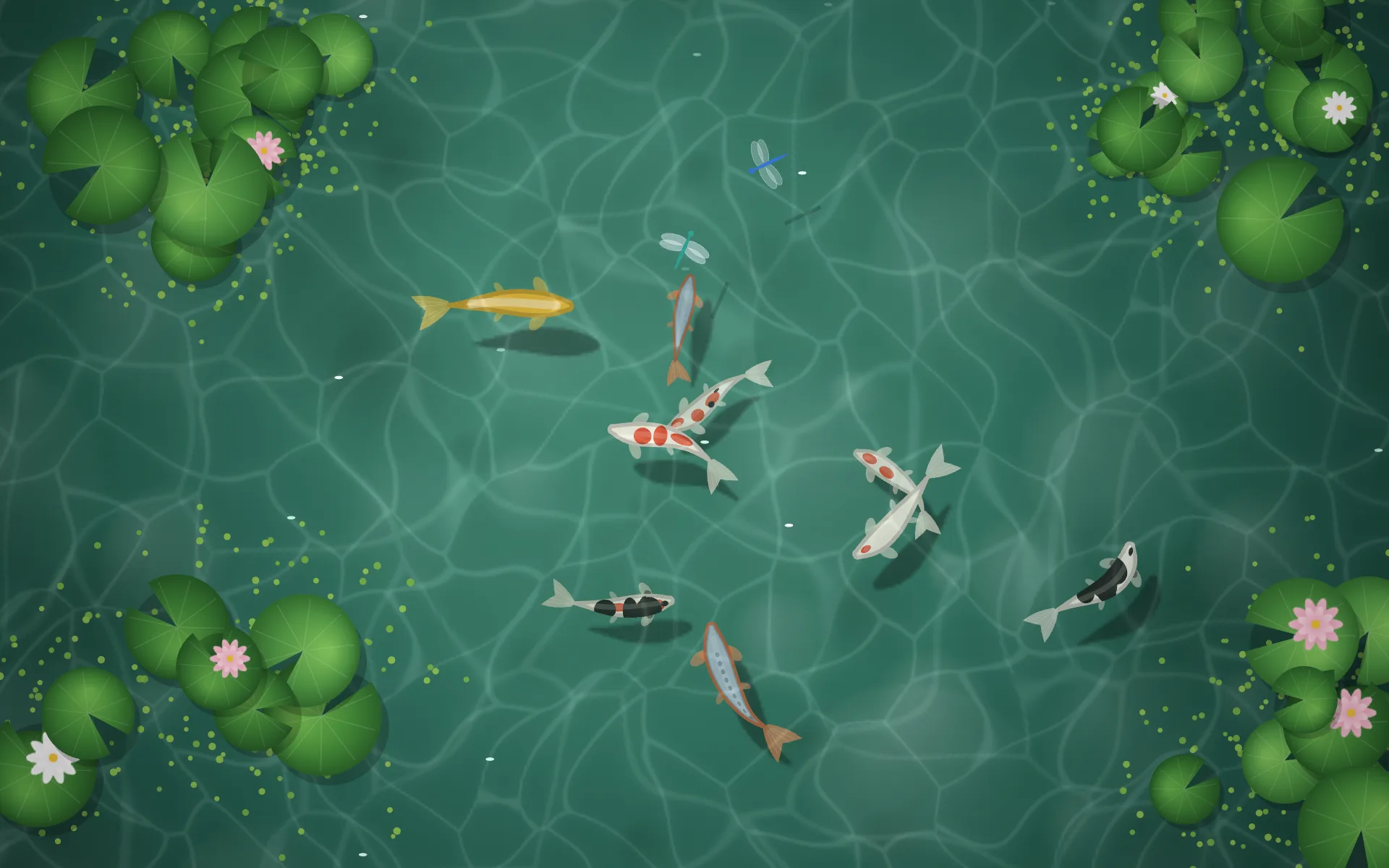
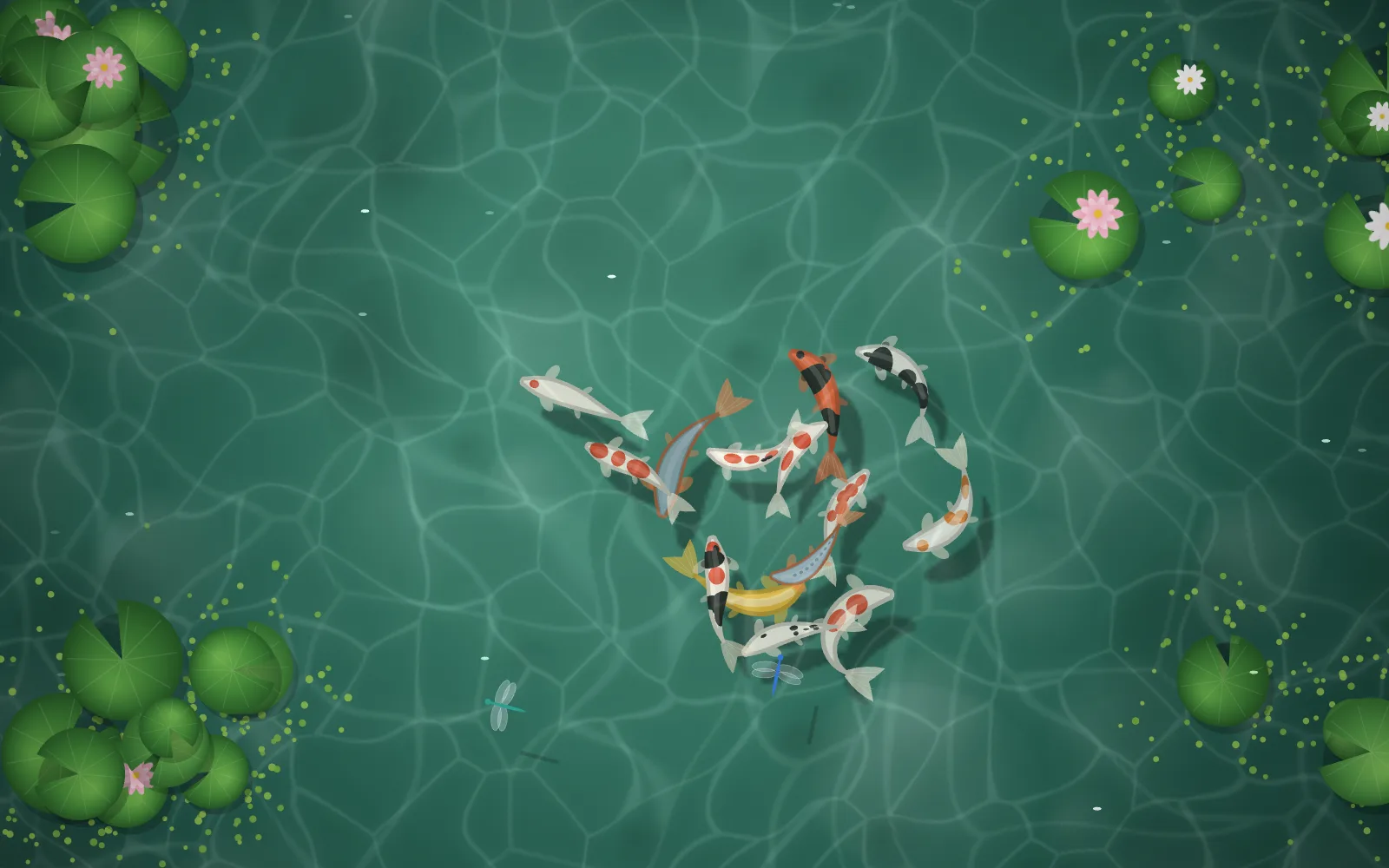
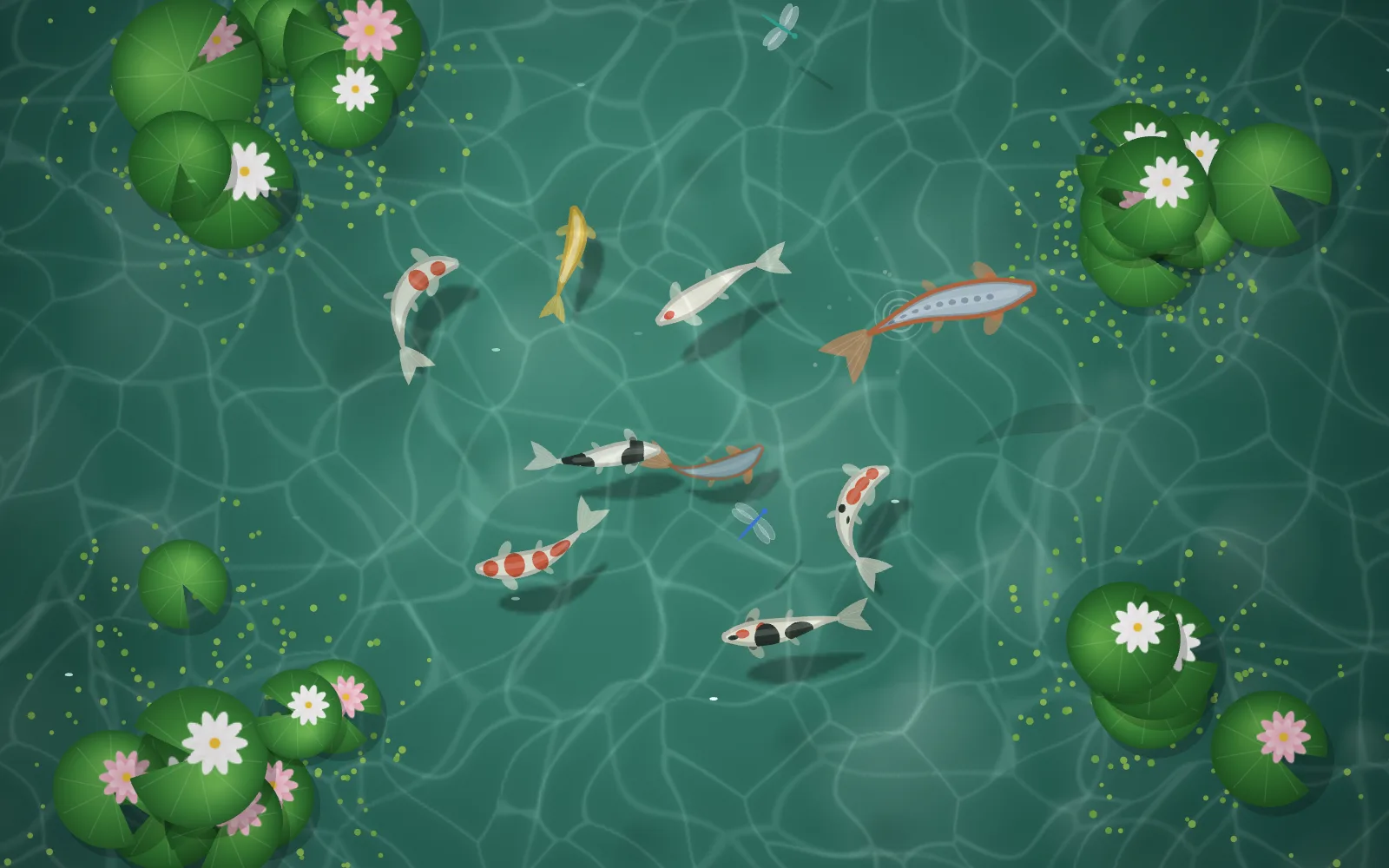
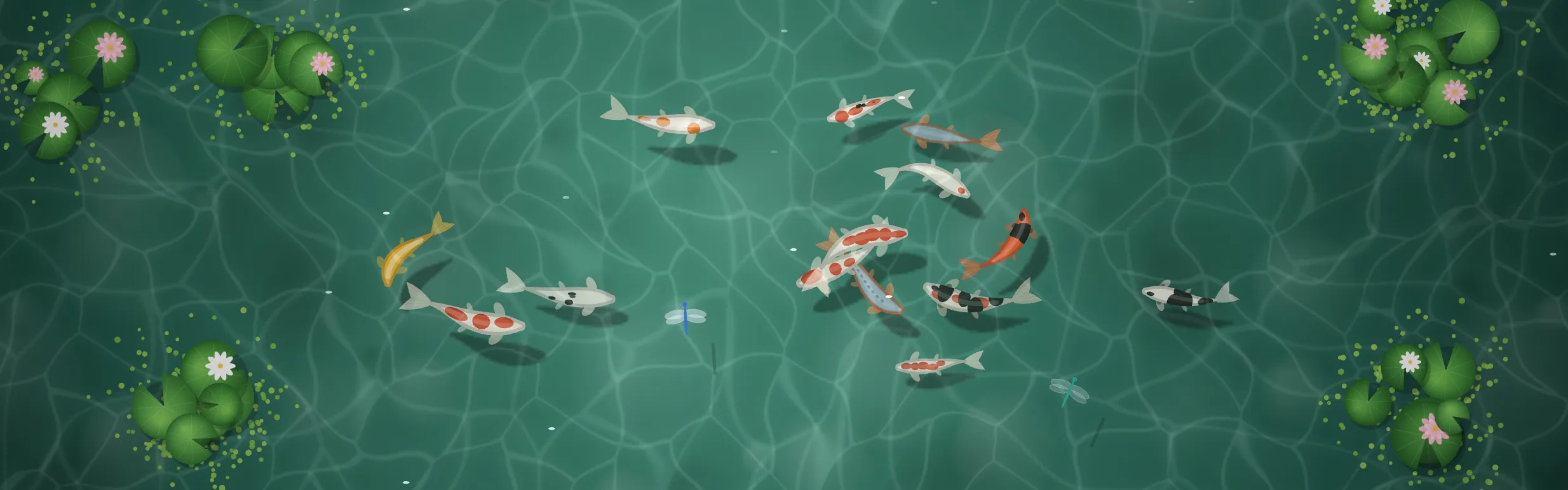
Twenty varieties. Kohaku, Showa, Ogon, Asagi and sixteen more, every fish with a pattern of its own.
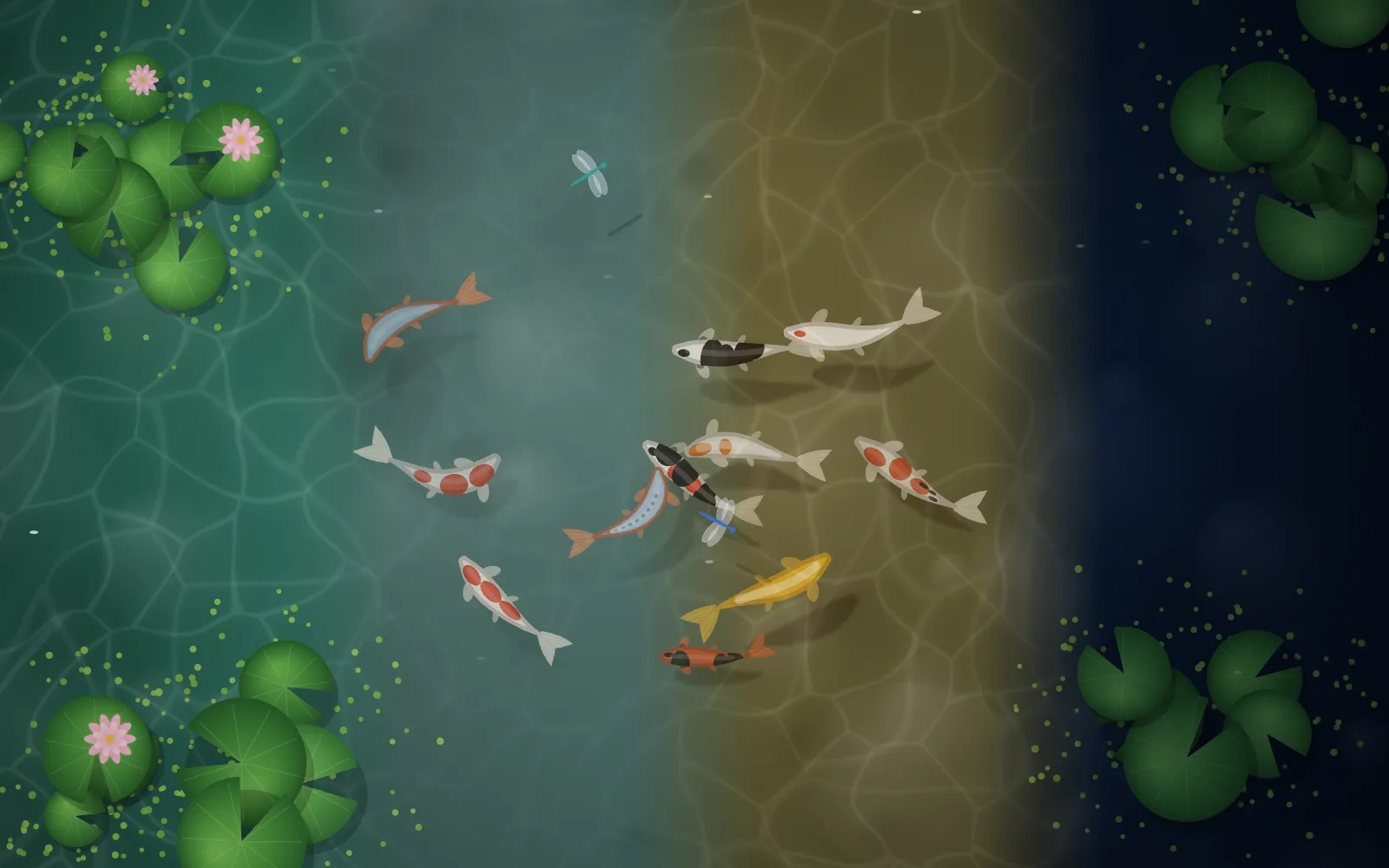
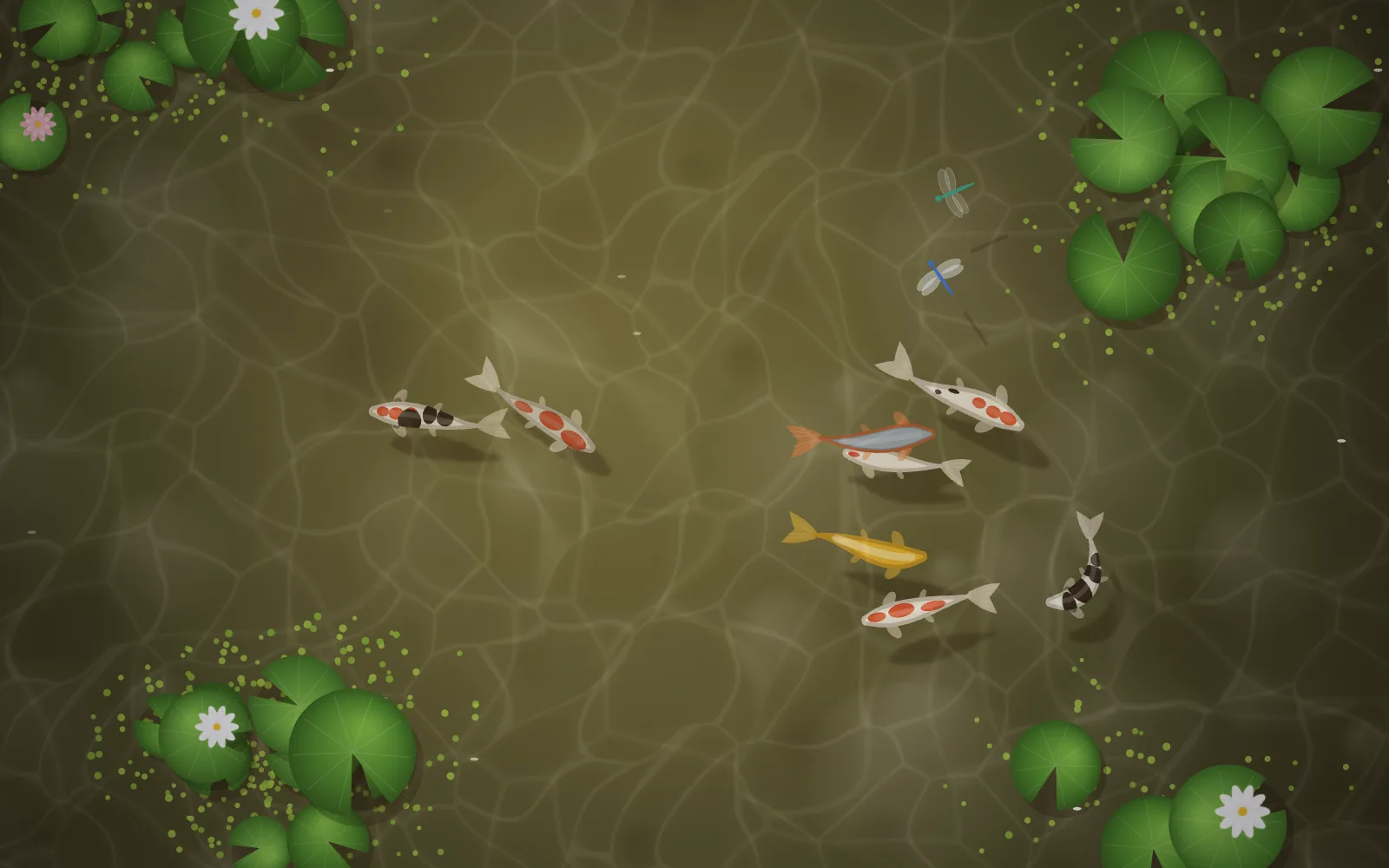
Day to night. Morning sun, grey afternoons, golden hours and moonlight, with the light changing on the water.
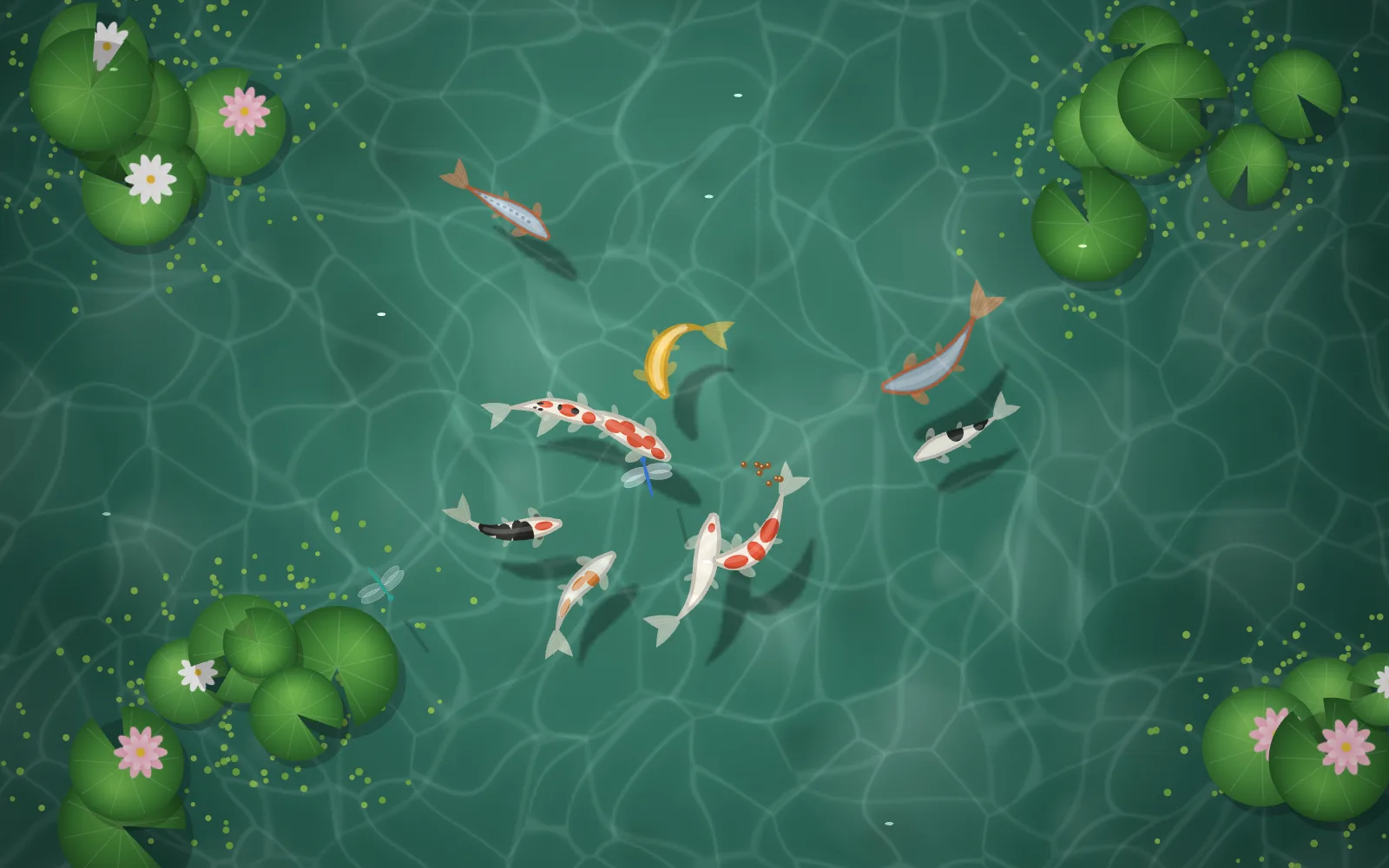
Feed them. Toss a handful of food and the hungry ones rise to eat, one bite at a time.
They leap. Point at a dragonfly and a koi jumps for it. Now and then, one leaps just because.
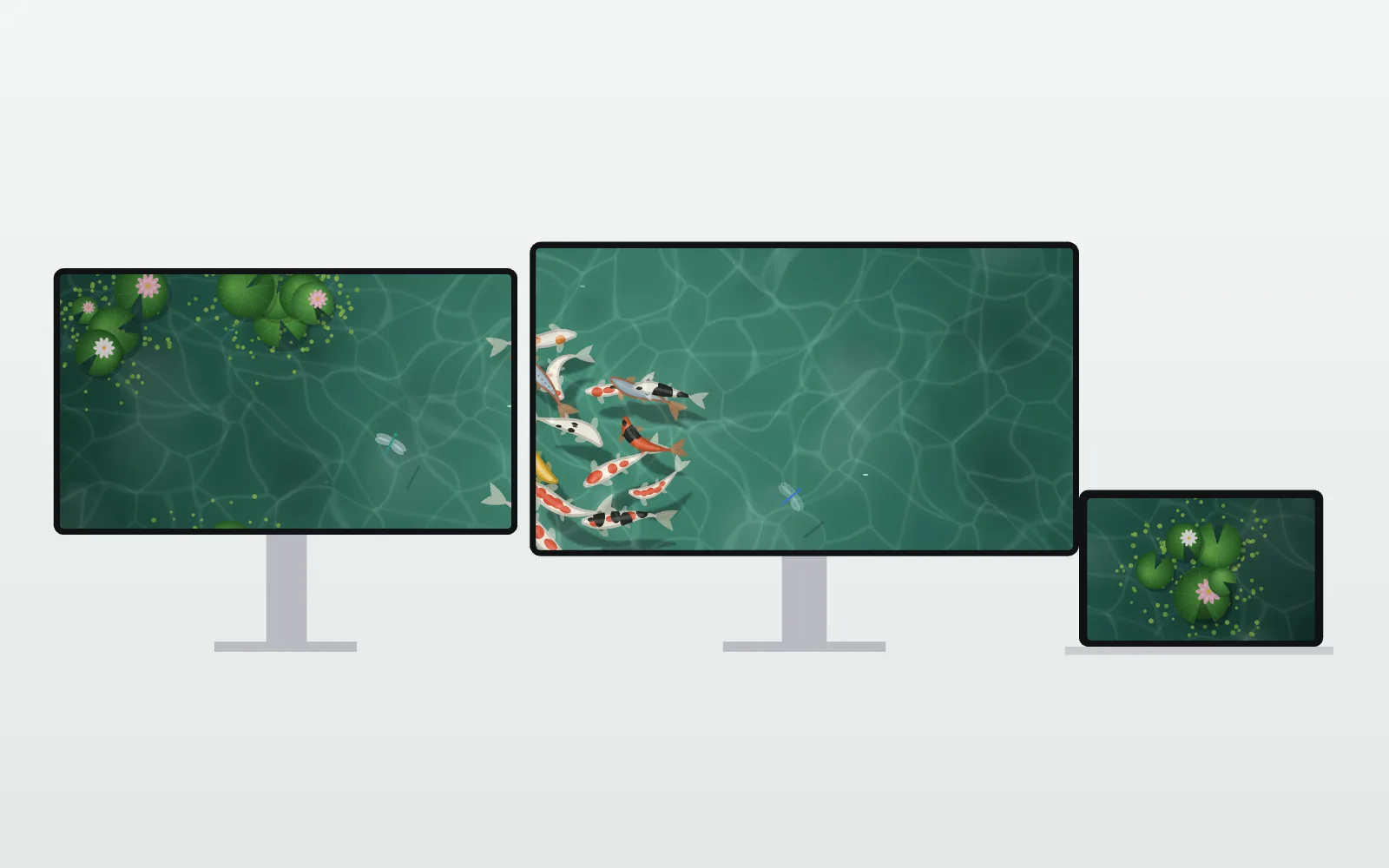
One pond, every screen. Spread a single pond across all your displays. The koi swim from one to the next.
Music and the sounds of the pond. Koto Garden, Temple Bells, Still Water or your own music, over a running stream, birdsong by day and frogs at night.
Varieties
Take a closer look.
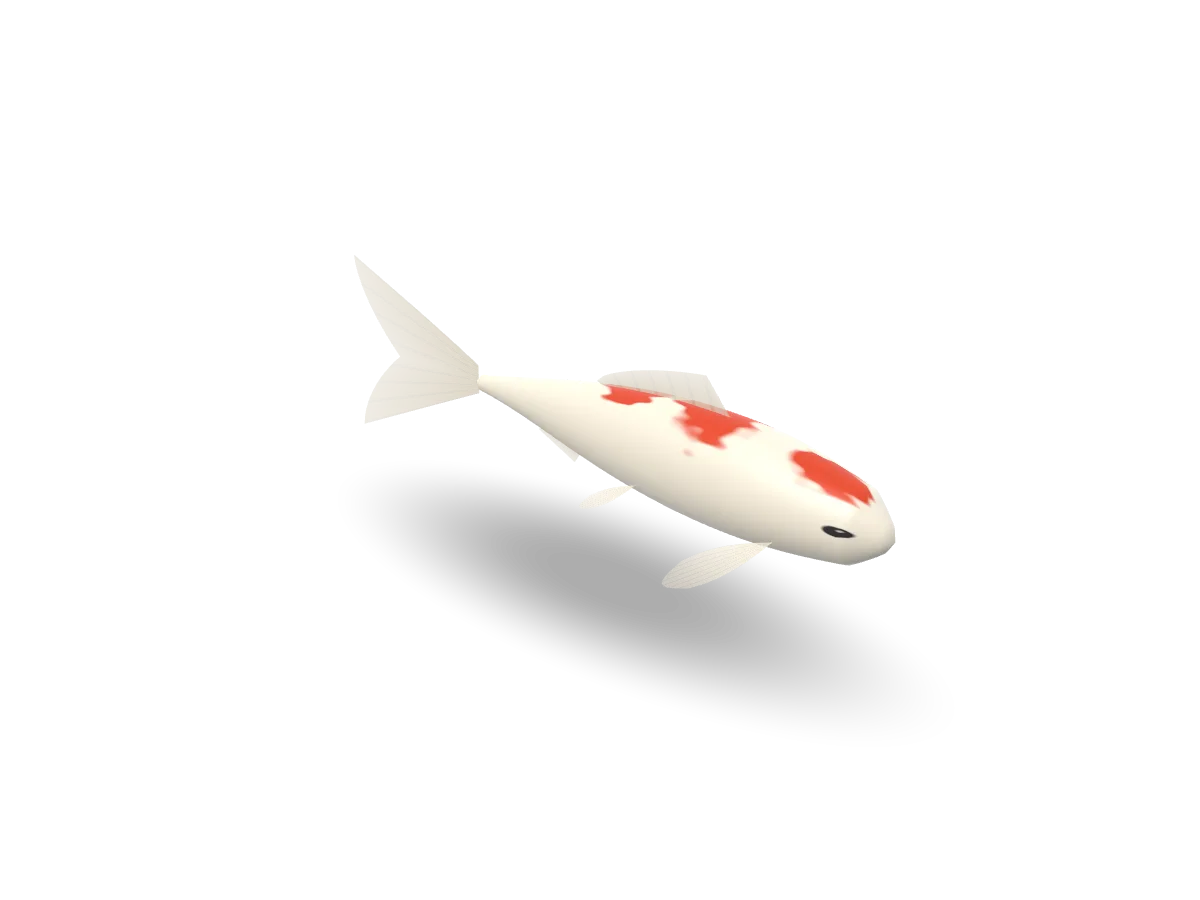
Twenty varieties, from the classic red and white Kohaku to the golden Yamabuki Ogon. Turn one around, then watch it grow up.
Drag to turnSwipe to turn
Kohaku
FryAdult
Three varieties swim in the free version. Full adds the other seventeen.
Seasons
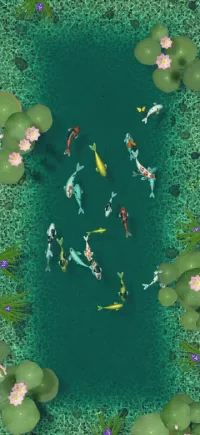
Four seasons, one pond.
Through the year the pond changes its plants, its light, its visitors and its sounds. With Full it follows the real seasons where you live, in either hemisphere, or stays in the season you choose.
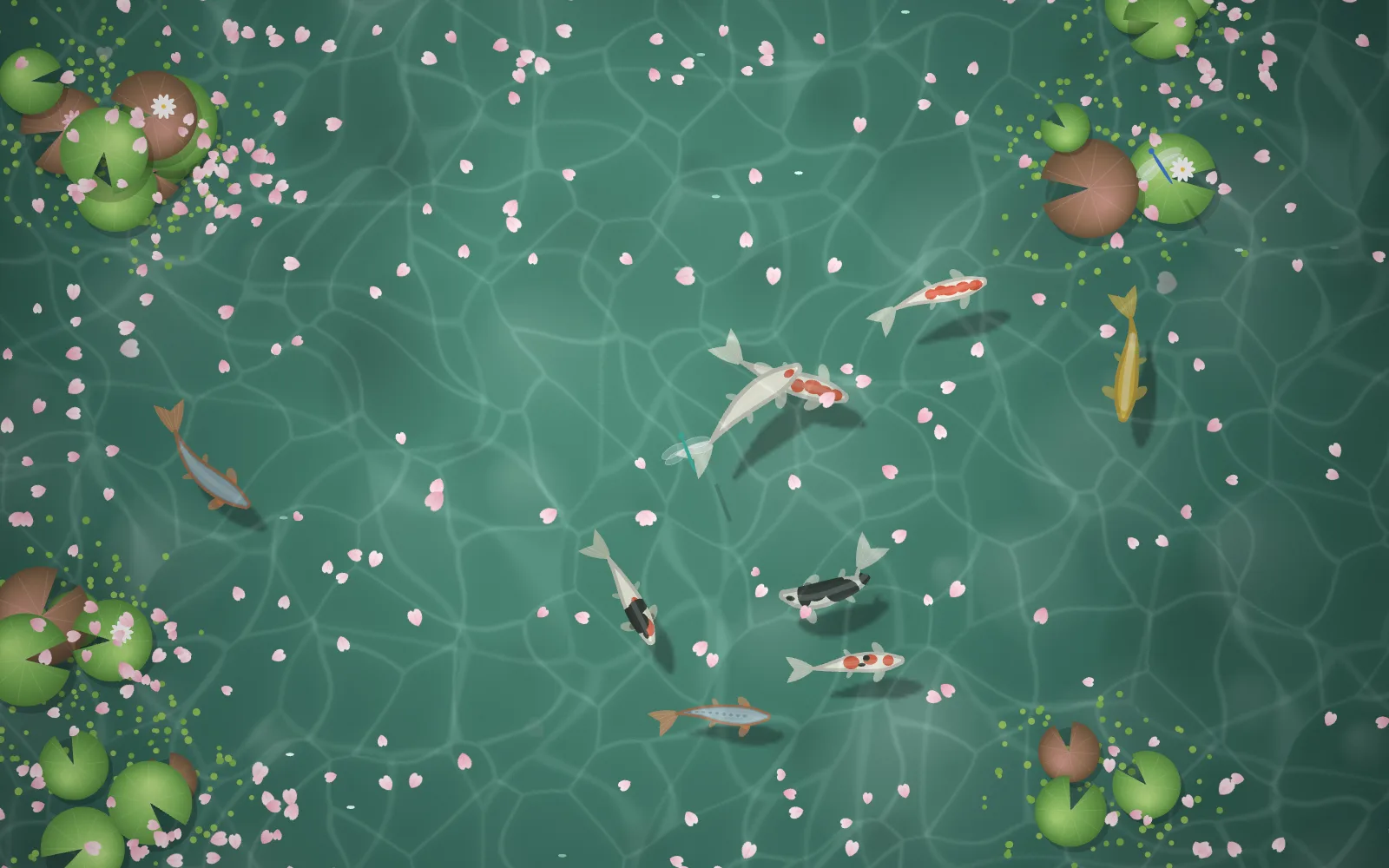
Spring · Sakura
Petals on the water.
Cherry blossom drifts down and gathers into pink rafts along the banks.
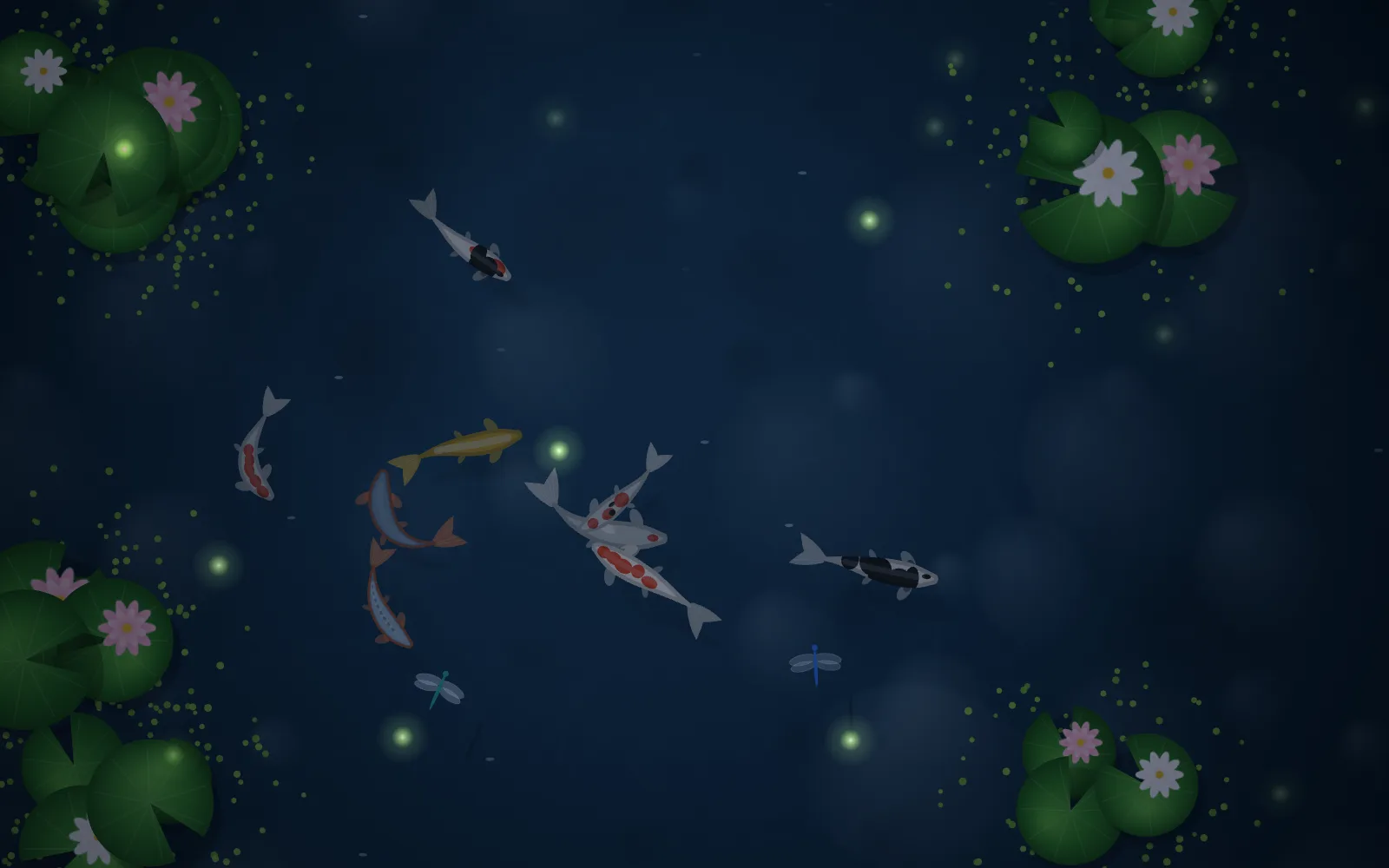
Summer · Hotaru
Fireflies after dark.
Lotus in bloom by day, and soft lights drifting low over the water at night.
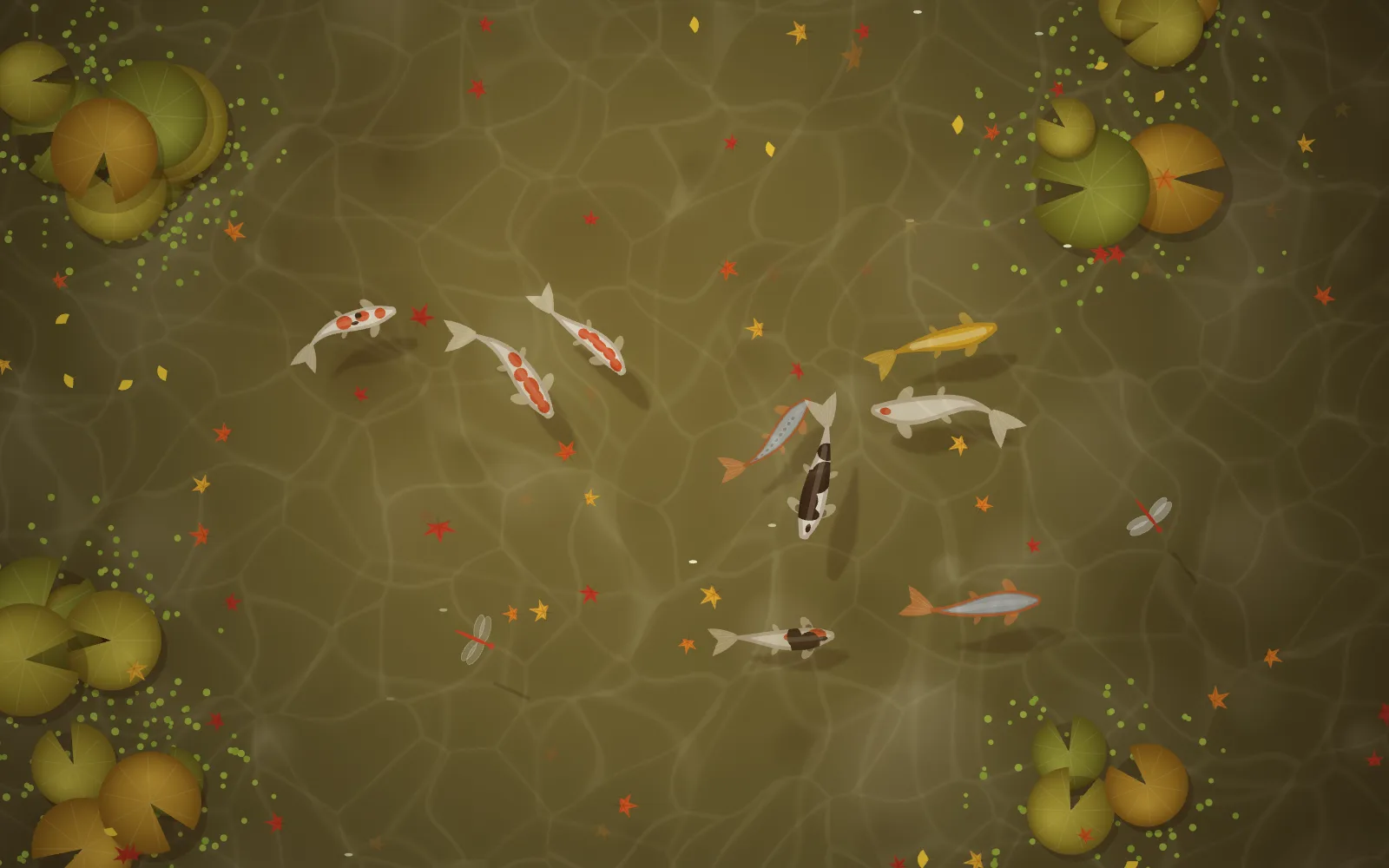
Autumn · Momiji
Maples in the low sun.
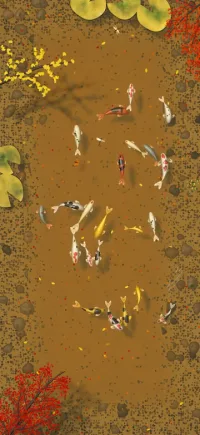
Crimson and gold leaves fall, float on the current and settle on the stones.
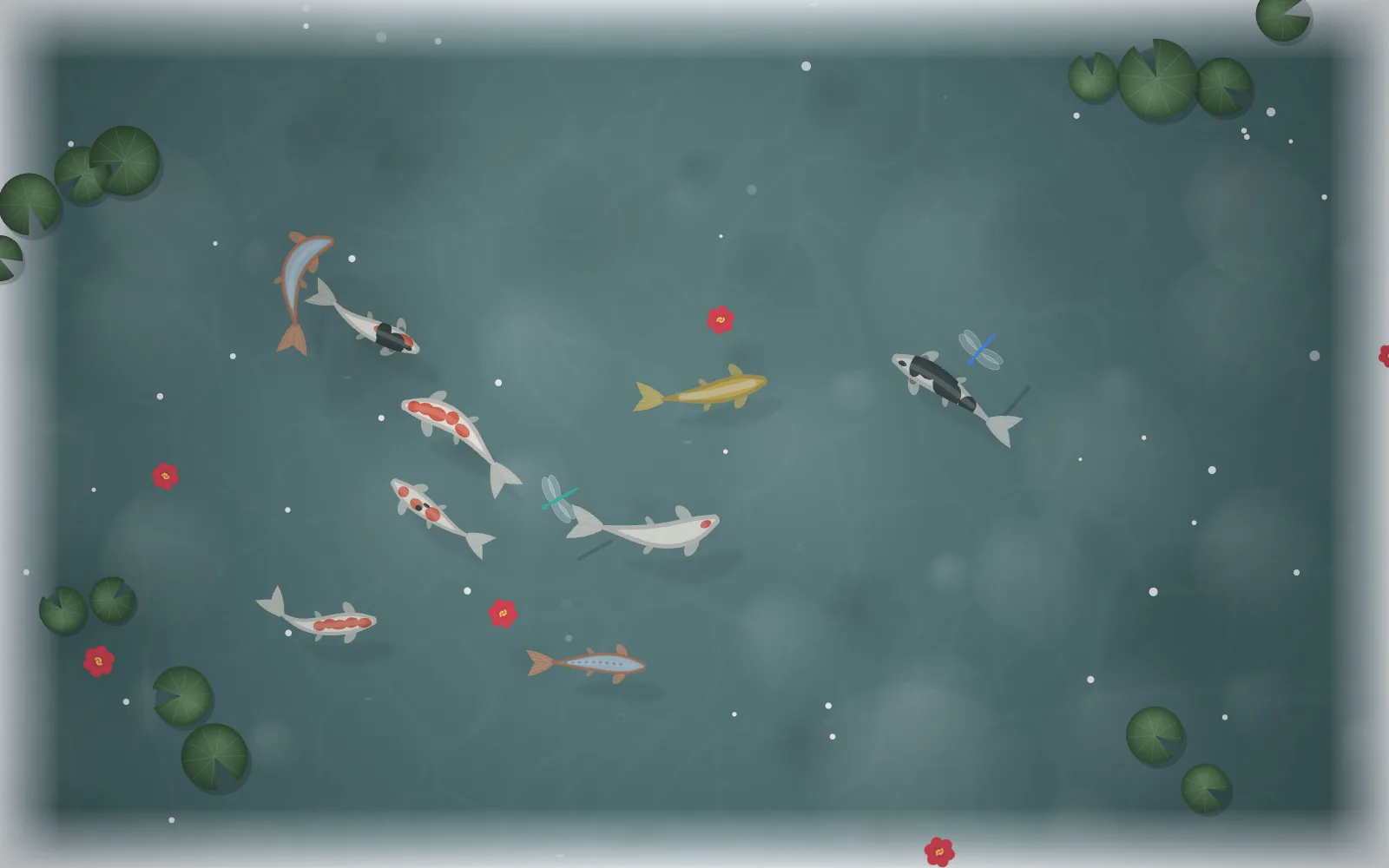
Winter · Tsubaki
Snow and camellia.
Flakes vanish as they touch the water, camellias float, and the koi slow down.
Seasons are part of Full. The free version keeps the pond as it is, all year round.
Interaction
Touch the water.
The pond answers you. Try it here, just as you would on your desktop, and change the sky while you are at it.
Try it
Multiple displays
One pond. Every screen.
With Full, one pond flows across all your displays, laid out the way your screens are. A koi slips behind one bezel and swims on into the next.
In the free version, every screen has a pond of its own.
Performance
Light on your computer.
A wallpaper should never get in the way. Koiya stays calm behind your work and steps aside when you need the power.
Up to
60 fps
with Full when something happens, and 30 while the pond is calm.
Paused
whenever windows cover the desktop, so the pond costs nothing while you work.
Battery Saver
eases the pond back when your laptop is running on battery.
Under
6 MB
to download on a Mac: the whole app, with its pond, its koi and its music.
Pricing
Free to try. Yours to keep.
Use the free version for as long as you like. When you want the whole pond, take Full by the month or by the year, or buy it once and keep it.
Koiya
Free
The whole app, with a smaller pond.
Up to 6 koi
Three single-colour varieties: Chagoi, Soragoi and Karashigoi
Lagoon, stone and sand pond floors
Sun or cloud by day, moonlight at night
A steady 30 frames a second
A school of minnows, a butterfly and a dragonfly
The sounds of the pond, with Koto Garden for music
Monthly, yearly, or once and yours forever. One key, one computer at a time.
The monthly and yearly plans renew each month or each year until you cancel; cancel any time and keep Full until the end of the month or year you paid for. Whichever you choose, you get every future update, and one key works on any mix of Mac and Windows. Payments are handled by Paddle; sales tax, VAT or GST is added at checkout where it applies.
Yes. The free version is the whole app with a smaller pond: up to 6 koi in three single-colour varieties (Chagoi, Soragoi and Karashigoi), the everyday skies, a steady 30 frames a second, and Koto Garden for music. Keep it as long as you like.
To download, enter your email address and open the link we send you. There is no password to remember.
Does it slow my computer?
It is built not to. The free version draws a steady 30 frames a second; Full draws 30 while the pond is calm and 60 when something happens, and lets you choose a fixed frame rate. Either way the pond pauses whenever windows cover the desktop, and Battery Saver eases off further on battery power.
Mac and Windows?
Both. The Mac app needs macOS 14 or later and runs on Apple silicon and Intel. The Windows app runs on Windows 11, on x64 and Arm PCs. A key works on one computer at a time, Mac or Windows.
Why does my Mac ask before opening Koiya?
Koiya is made by an independent developer and is not yet notarised by Apple, so the first time you open it, macOS asks you to confirm. Open System Settings, then Privacy & Security, and choose Open Anyway.
macOS asks once. After that, Koiya opens like any other app. The install guide walks through each step.
On my Mac, clicking the pond moves all my windows away. Why?
That’s macOS’s “Click wallpaper to show desktop”. In System Settings, Desktop & Dock, set it to Only in Stage Manager and keep Stage Manager off. The install guide shows where.
How do keys work?
When you buy Full, monthly, yearly or once, your licence key appears on your account page and arrives by email. Enter it in Koiya on your computer, Mac or Windows.
Changing computers? Free the old one from your account page, then activate the new one.
How do I cancel a monthly or yearly plan?
Any time, from your account page: choose Manage or cancel, which opens Paddle's customer portal. You are not charged again, and Full stays until the end of the month or year you have paid for.
What happens when my subscription ends?
At the end of the paid month or year, Koiya goes back to the free version on your computers, and your pond stays as it is. Take a plan again, or buy Full once, whenever you like from your account page; a new plan comes with its own key.
Refunds?
If Full is not right for you, ask for a refund within 30 days of buying it once, or of the first payment of a monthly or yearly plan. Paddle, which handles our payments, returns your money and the key stops working. The refund policy has the details.
Multiple screens?
Yes. The free version gives every screen a pond of its own. With Full, one pond flows across all your screens and the koi swim from one to the next.
What about privacy?
Koiya has no ads and no tracking scripts. Your account holds your email address, your purchases (made through Paddle), the computers you have activated, your downloads and, when the link you came by names it, where you found us. The app looks for updates about once a day, which also tells us it was installed; it sends nothing about how you use it.
The app checks your key about once a week and keeps working offline for 30 days. The privacy policy has the details.